Struggling to navigate Facebook’s ever-evolving platform to find the Ads Manager? You’re not alone.
Discovering exactly where to click can sometimes feel like a game of hide and seek. But here’s the good news: mastering this essential tool is just a few steps away. Imagine having the power to effortlessly manage your ad campaigns, track performance, and optimize results right at your fingertips.
This guide will lead you through the process with clarity and ease, ensuring you can focus more on crafting compelling ads and less on finding the right buttons. Ready to unlock the secrets of Facebook Ads Manager and elevate your advertising strategy? Dive in, and let’s simplify your journey to advertising success.
Accessing Ads Manager
Facebook Ads Manager is a powerful tool for any digital marketing strategy. It helps businesses manage Facebook ads effectively. Understanding how to access this tool is crucial for anyone involved in Facebook advertising. Whether you’re creating ads or analyzing ad campaigns, Ads Manager offers all the necessary features to optimize your efforts.
Accessing Ads Manager Through Facebook Interface
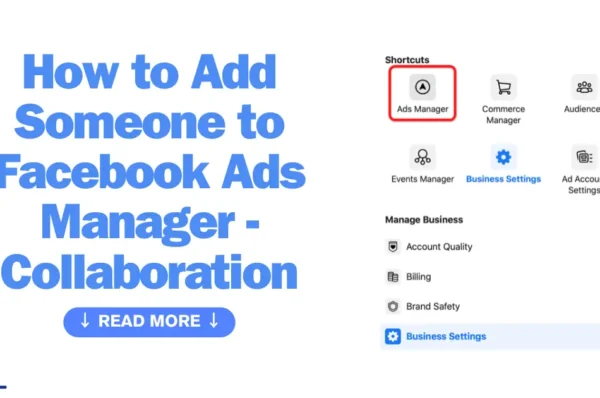
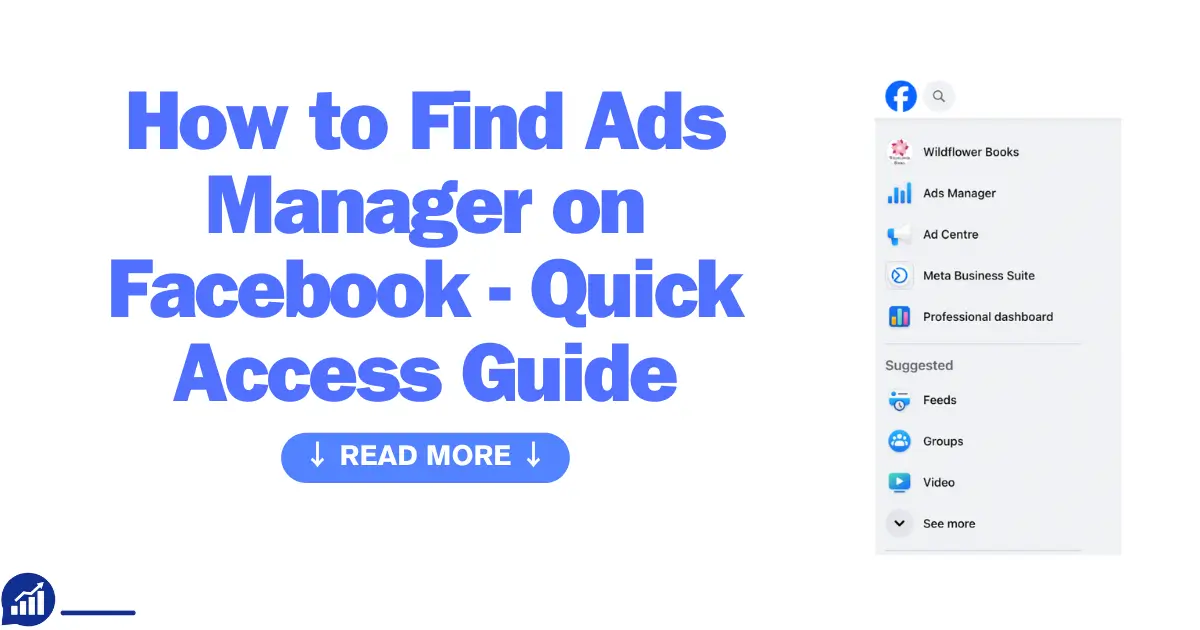
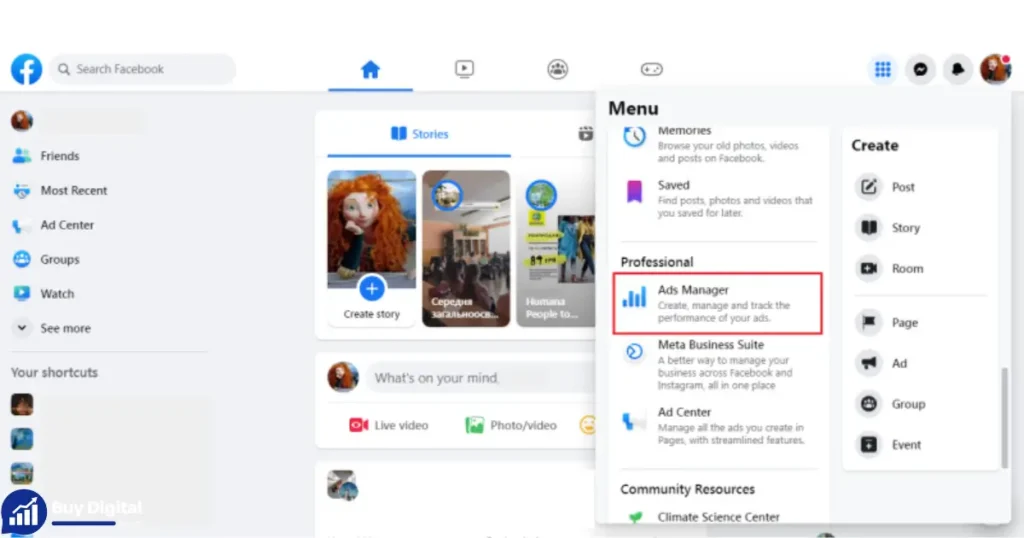
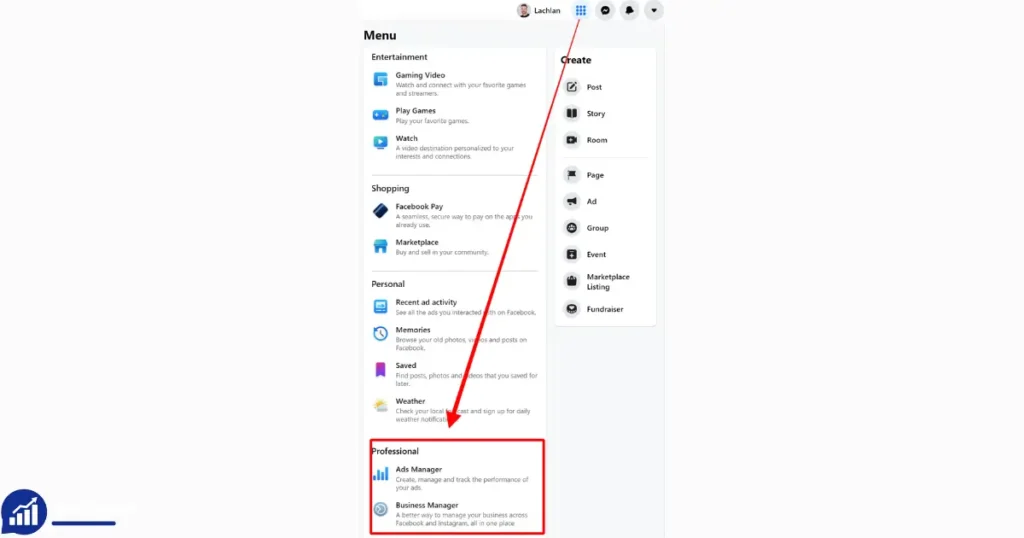
Begin by logging into your Facebook account. Look for the menu icon in the top-right corner of the Facebook interface. Click it and scroll down to find Ads Manager. This is your gateway to managing Facebook ads and creating ad campaigns. The Facebook Ads interface is user-friendly, designed to streamline your advertising strategy.
Using Facebook Business Tools
Businesses can also access Ads Manager through Facebook Business Tools. First, navigate to Business Suite. Here, you will see a range of options tailored for businesses, including Ads Manager. These tools enhance your ability to manage Facebook ads efficiently.
Quick Access Via URL
For those who prefer direct access, use the URL www.facebook.com/adsmanager. Type this into your browser’s address bar. This link takes you straight to Ads Manager. It’s a quick way to dive into digital marketing on Facebook without navigating through the main Facebook Ads interface.
Accessing Ads Manager On Mobile
Ads Manager is also available on mobile devices. Download the Facebook Ads Manager app from your app store. Open the app and log in with your Facebook credentials. This mobile version is perfect for creating ads on the go and monitoring ad campaigns.
Setting Up Ads Manager Account
Ensure your Facebook account is linked to a business page. This connection is essential for accessing Ads Manager. Once linked, you’re ready to explore Facebook advertising. Start by setting up ad campaigns and utilizing the various features available.
| Method | Steps |
|---|---|
| Facebook Interface | Log in > Menu > Ads Manager |
| Business Tools | Navigate to Business Suite > Ads Manager |
| Direct URL | Type www.facebook.com/adsmanager |
| Mobile App | Download > Log in |
Each method provides a unique way to access Ads Manager, catering to different user preferences. Choose the option that best suits your needs and start creating effective ad campaigns.
Navigating The Facebook Interface
Facebook’s platform offers a powerful Advertising Dashboard where businesses can create and manage their ad campaigns. Understanding how to navigate Ads Manager is crucial for optimizing your advertising efforts. The Facebook interface is designed to be user-friendly, yet accessing specific tools like the Ads Manager can be confusing. This guide simplifies the process of locating and navigating the Facebook Ads Manager.
Understanding The Facebook Interface
The Facebook interface is a hub of numerous features and tools. Recognizing these elements can ease your journey in accessing the Ads Manager. The main features include:
- Home: Your news feed with updates from friends and pages.
- Pages: Manage your business pages.
- Groups: Connect with communities.
- Marketplace: Explore buying and selling options.
- Notifications: Alerts about interactions and updates.
Each feature serves a different purpose, and knowing them helps in efficiently reaching the Facebook Business Suite for ad management.
Steps To Locate Ads Manager
Finding the Ads Manager is straightforward once you know where to look. Follow these steps:
- Open your Facebook account and look for the Menu icon (three horizontal lines) on the top right.
- Click on the Menu and scroll down to find Business Suite.
- Within the Business Suite, locate Advertising Tools.
- Select Ads Manager to access your advertising dashboard.
These steps will guide you directly to the Facebook Ads Manager, where you can create and manage your campaigns.
Using Facebook Advertising Tools
Once you access the Ads Manager, you will find various Facebook Advertising Tools designed to enhance your ad campaigns. Key tools include:
| Tool | Description |
|---|---|
| Ad Creation | Create Facebook Ads tailored to your audience. |
| Performance Metrics | Track the success of your ad campaigns. |
| Budget Management | Control ad spend effectively. |
| Audience Insights | Understand and reach your target audience. |
Using these tools, you can efficiently manage Facebook Ad Campaigns and optimize their performance.
Accessing And Navigating Ads Manager
Once inside the Ads Manager, navigating its features becomes essential. You can:
- Manage Facebook Ads: Adjust settings and optimize your ads.
- Create Facebook Ads: Design new campaigns with creative ideas.
- Track Performance: Use metrics to evaluate ad success.
Being familiar with the interface allows you to access Ads Manager swiftly and utilize its capabilities.
Learning how to navigate Ads Manager empowers businesses to use the platform effectively. With the right knowledge, managing your Facebook Advertising Tools becomes a seamless experience.
Using The Facebook Business Suite
Facebook Business Suite is a powerful platform that simplifies managing Facebook Ads. It combines various Facebook Business Tools into a single dashboard, making it easier to navigate Ads Manager and manage ads on Facebook. This tool is perfect for both seasoned marketers and newcomers to Facebook advertising. Let’s explore how to access Ads Manager using the Facebook Business Suite.
How To Access Ads Manager Through Facebook Business Suite
First, ensure you have a Facebook Business account. Once logged in, you can find the Facebook Business Suite on your homepage. This suite is your gateway to various tools, including Ads Manager Location. Follow these steps:
- Go to your Facebook homepage.
- Look for the Business Suite icon on the left sidebar.
- Click it to open the Facebook Business Tools dashboard.
Navigating The Facebook Business Suite Dashboard
Once inside the Business Suite, you will see an overview of your Facebook Ad Campaigns. This dashboard gives you insights into your posts, audience, and engagement. Here, you can easily access Ads Manager by clicking on the Ads section in the left menu.
- Check the Overview section for recent activity.
- Select Adsto dive into the Advertising Dashboard that Facebook provides.
- Use this section to manage and navigate Ads Manager effectively.
Creating Ads On Facebook Using Ads Manager
In the Ads section, you can create ads on Facebook. The intuitive design helps in setting up your campaigns. Follow these simple steps:
- Click on the Create button to start a new ad.
- Select your campaign objective, such as traffic or engagement.
- Fill in the necessary details, like budget and audience targeting.
- Review your ad and publish it.
Benefits Of Using Facebook Business Suite For Advertising
Using the Business Suite for Facebook Ads offers several advantages:
| Feature | Benefit |
|---|---|
| Centralized Dashboard | Manage all your ads from one place. |
| Comprehensive Insights | Get detailed reports on ad performance. |
| User-Friendly Interface | Easily navigate and create ads. |
With the Facebook Business Suite, accessing and managing your Facebook advertising campaigns becomes seamless. It ensures you spend more time crafting effective ads and less time figuring out logistics.
Mobile Access To Ads Manager
Advertising on Facebook has become a pivotal part of digital marketing strategies worldwide. With the rise of mobile usage, accessing Ads Manager through your smartphone is vital for managing Facebook ad campaigns on the go. Many find it challenging to locate the Ads Manager using Facebook business tools on mobile devices. This section will guide you in finding and using Ads Manager on mobile, simplifying the process of creating and managing Facebook ads seamlessly.
How To Access Ads Manager On Mobile
To begin managing Facebook ads on your mobile device, download the Facebook Ads Manager app from your app store. The app provides easy access to all Facebook business tools, helping you manage Facebook ads efficiently. Ensure you have the latest version to benefit from updated features.
- Open the Facebook Ads Manager app.
- Log in using your Facebook business account.
- Navigate through the app’s intuitive interface to find your ad campaigns.
The app’s layout simplifies the process of creating Facebook ads and tracking their performance.
Features Of Mobile Ads Manager
The mobile Ads Manager offers a range of features to enhance your social media advertising experience. From the comfort of your smartphone, you can:
| Features | Description |
|---|---|
| Ad Creation | Create Facebook ads with customizable options to target specific audiences. |
| Performance Tracking | Monitor real-time metrics to evaluate ad campaign effectiveness. |
| Budget Management | Adjust ad spend to optimize your advertising on Facebook. |
These tools ensure effective management of Facebook advertising campaigns, boosting your digital marketing efforts.
Benefits Of Using Ads Manager On Mobile
Managing Facebook ad campaigns via mobile offers unique advantages. You can:
- Respond quickly to changes in ad performance.
- Make adjustments to ads anytime, anywhere.
- Stay connected to your campaigns even when away from a computer.
Accessing Ads Manager on mobile ensures continuous engagement with your social media advertising strategies.
Troubleshooting Access Issues
Finding the Facebook Ads Manager can sometimes be tricky. It is an essential tool for those managing Facebook ads and building a solid Facebook marketing strategy. Accessing this tool is crucial for anyone looking to create ads on Facebook. If you’re experiencing trouble accessing it, you’re not alone. Many face issues with access, but with the right guidance, these problems can be easily resolved. Here’s a guide to troubleshoot access issues effectively.
Understanding Common Access Issues
Accessing the Facebook Ads Manager often comes with hurdles. Many users encounter issues due to permissions or account settings. Incorrect permissions can limit your ability to manage Facebook ads effectively. Always ensure you have the right access level in your Facebook Business Manager.
Sometimes, a disabled Facebook ad account can be the culprit. Check if your account is active and has not violated any advertising policies. This can prevent you from using Facebook advertising tools as intended.
Steps To Resolve Permission Problems
- Log in to your Facebook account.
- Go to the Facebook Business Manager.
- Check your role and permissions under ‘People and Assets’.
- Ensure you have ‘Admin’ or ‘Advertiser’ access.
- Contact the admin if changes are needed.
These steps can help you navigate Facebook Ads Manager without hindrance. Permissions are key to accessing the full functionality of Facebook Ads Manager.
Fixing A Disabled Facebook Ad Account
A disabled account can halt your Facebook marketing strategy. Check the status of your ad account through the Facebook Business Manager. If disabled, review the reasons provided by Facebook.
| Action | Description |
|---|---|
| Review Violations | Check for policy violations in your account settings. |
| Submit an Appeal | If eligible, submit an appeal for account review. |
| Contact Support | Reach out to Facebook support for assistance. |
Accessing Facebook Ads Manager On Mobile
Many users prefer managing their ads on mobile. To do this, download the Facebook Ads Manager app. Log in with your credentials and navigate Facebook Ads Manager with ease. The app provides similar features to the desktop version, allowing you to manage your ad campaigns on the go.
Following these steps can help you overcome the common access issues encountered while advertising on Facebook. Ensuring proper permissions and understanding account status are vital for effective Facebook ads management.
Key Features Of Ads Manager
Facebook Ads have become an essential part of digital marketing strategies. Navigating Facebook Ads requires a keen understanding of the Ads Manager Location. Access Ads Manager easily on the Facebook Marketing Platform. It’s your go-to tool to manage Facebook Ads effectively. The Ads Manager Dashboard is packed with features. Explore Facebook Advertising Tools effortlessly. Navigate Facebook Ads with confidence. Find Ads Manager using Facebook Business Tools to streamline your ad campaigns. Let’s delve into the Key Features of Ads Manager.
Ad Creation
Ads Manager simplifies ad creation. Choose your objective. Define your target audience. Select creative assets. Customize ads to meet your marketing goals. Step-by-step guidance ensures you stay on track.
Performance Tracking
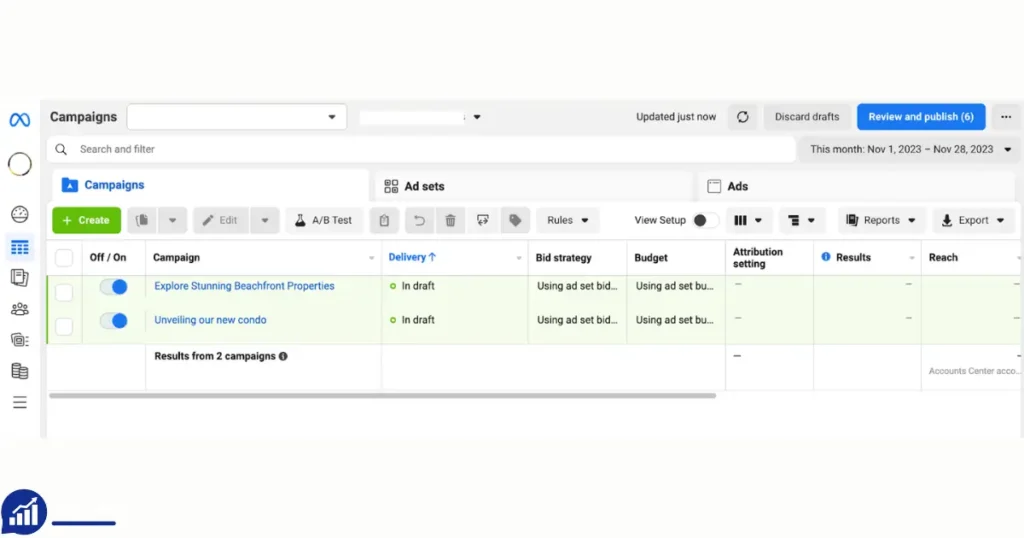
Monitor ad performance with precision. Access detailed insights on reach, engagement, and conversion. Use the Ads Manager Dashboard to visualize data. Track performance metrics easily. Adjust strategies based on real-time data.
Budget Management
Budgeting is crucial for successful campaigns. Ads Manager allows setting daily or lifetime budgets. Optimize spending to maximize return on investment. Control costs without compromising reach.
Audience Targeting
Pinpoint your audience with advanced targeting options. Use demographics, interests, and behaviors. Ads Manager enhances targeting precision. Reach the right people effectively. Increase engagement and conversion rates.
Creative Testing
Experiment with different ad creatives. Ads Manager supports A/B testing. Compare the performance of various designs. Identify what works best for your audience. Improve ad effectiveness continuously.
Automated Rules
Set automated rules to manage campaigns. Ads Manager simplifies tasks with automation. Define conditions for ad adjustments. Save time while maintaining control. Ensure campaigns run smoothly with minimal oversight.
Comprehensive Reporting
Generate detailed reports effortlessly. Ads Manager provides customizable reporting options. Analyze key metrics in depth. Make data-driven decisions with ease. Enhance campaign strategies based on comprehensive insights.
Frequently Asked Questions
Why Can’t I Access Ads Manager On Facebook?
You might not access Ads Manager due to account issues, browser problems, or insufficient permissions. Check your internet connection, clear browser cache, or update your browser. Ensure you have the necessary permissions. Contact Facebook support if problems persist.
Can I Access The Ads Manager On My Phone?
Yes, you can access Ads Manager on your phone using the Facebook Ads Manager app. Download it from the App Store or Google Play. The app allows you to create, edit, and manage your ad campaigns conveniently from your mobile device.
How Do I Open My Facebook Ad Manager Account?
Log in to your Facebook account. Click the menu in the top right corner. Select “Ads Manager” from the options. You can now access and manage your ad campaigns. Ensure you have a business account linked for full functionality.
Where Can I Find My Leads In Facebook Ads Manager?
Find your leads in Facebook Ads Manager by navigating to the “Ads” tab. Click on “Leads Center” to access them. You can also download leads directly from the “Tools” section under “Business Tools” in the left-hand menu.
How Do I Access Facebook Ads Manager?
Log in to your Facebook account. Click the menu icon, then select “Ads Manager” from the list.
Conclusion
Finding Facebook’s Ads Manager is simple with the right steps. Start by logging into your Facebook account. Head to the menu and select “Ads Manager” from the dropdown. This tool helps manage and track your ad performance effectively. Remember, practice makes perfect.